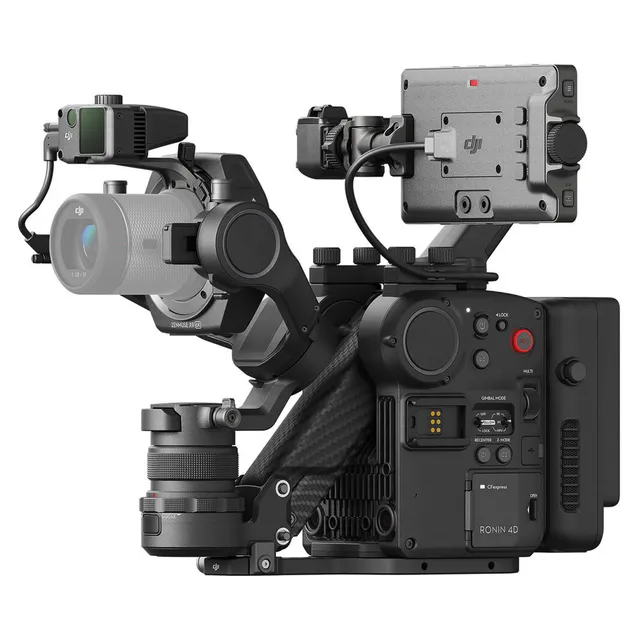
Technical specifications
- Sensor
- Full-Frame CMOS
- Sensor Size
- 35.98 x 23.98 mm
- Megapixels
- 24.1
- Mount
- DJI DL
- Max Resolution
- 6K (6008x3168)
- Max Frame Rate
- 120fps @ 4K DCI
- Codec
- ProRes, H.264
- Dynamic Range
- 14 Stops
- ISO Range
- ISO 200–12800
- Log / Gamma
- HDR-HLG, Rec709
- Autofocus
- LiDAR Waveform Autofocus
- Stabilization
- Integrated Gimbal, 4-Axis
- ND Filter
- 1–9 stop (9-position wheel)
- Ports
- 1x HDMI 1.4, 1x 1/8" / 3.5 mm TRS Stereo Mic/Line, 1x 1/8" / 3.5 mm TRS Stereo Headphone, 1x Barrel (12 to 30VDC), 1x USB-C (USB 3.2 / 3.1 Gen 1) Data/Video Input/Output, 1x Proprietary Monitor
- Battery
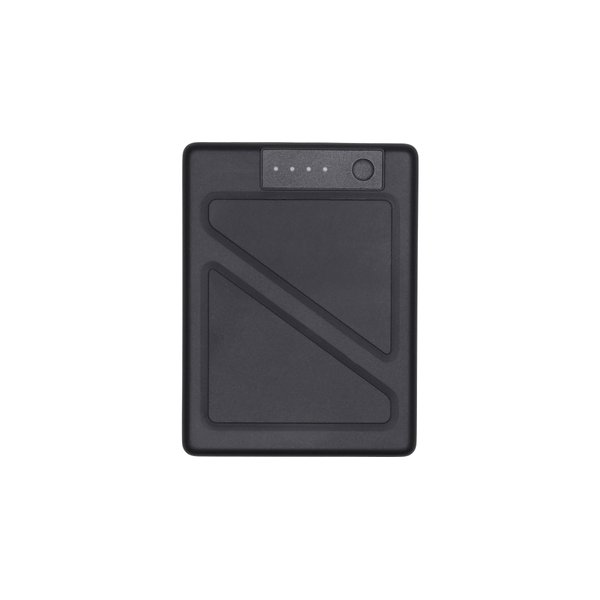
- DJI TB50
- Weight
- 1450g
- Dimensions
- 309 x 290 x 277 mm
- MSRP
- $11,499
Add your voice
Your ratings help other filmmakers choose the right camera.
Own it?
What do you use this for?
Field guide
Overview
The DJI Ronin 4D is a radical departure from traditional cinema camera design, effectively merging a high-end gimbal system with a professional-grade camera body. By integrating the stabilization hardware directly into the chassis, DJI has created a platform that eliminates the need for external gimbals, significantly reducing the footprint and complexity of a cinema rig. It is a purpose-built tool for cinematographers who prioritize fluid, stabilized movement without the logistical headache of balancing traditional camera-on-gimbal setups.
Beyond its unique form factor, the Ronin 4D features a sophisticated 4-axis stabilization system, including a Z-axis that compensates for vertical motion—a game-changer for walking shots. The system is highly modular, featuring a high-bright main monitor, dedicated hand grips with integrated focus and exposure controls, and a robust power system using TB50 batteries. It is designed to be a self-contained ecosystem, requiring specific activation via DJI Assistant 2 and a mandatory auto-tune process whenever the lens is swapped.
This camera is best suited for documentary filmmakers, run-and-gun operators, and production crews who need to move quickly without sacrificing cinematic stability. It is an ideal choice for projects where vertical camera shake is a concern, such as tracking shots or handheld sequences that need to mimic the smoothness of a dolly or crane.
Pros & Cons
Pros
Integrated 4-axis stabilization (including Z-axis) provides unparalleled smoothness for walking shots without needing a separate gimbal.
High-bright main monitor is included, reducing the need for external field monitors and simplifying the rig.
Modular hand grips provide comprehensive control over focus, aperture, and gimbal movement, keeping the operator's hands on the rig.
Supports high-speed storage via CFexpress 2.0 Type B or the proprietary DJI PROSSD 1TB for reliable high-bitrate recording.
Fast 1.5-hour charging time for TB50 batteries keeps downtime to a minimum on set.
Cons
Mandatory auto-tune process is required every time a lens is changed, which can slow down production during lens swaps.
The system requires initial activation via a computer and DJI Assistant 2 software, preventing immediate out-of-the-box use.
The gimbal must be manually balanced (tilt and pan axes) before use, which is more involved than traditional fixed-lens cameras.
Proprietary storage (DJI PROSSD) or specific CFexpress cards are required, limiting media flexibility.
The physical size and weight of the integrated system may be cumbersome for extremely tight spaces compared to a stripped-down mirrorless body.
Best Settings
Documentary / Run-and-Gun
Use the 'FOLLOW' gimbal mode with the Z-axis enabled to smooth out walking motion. Ensure the Z-axis is balanced using the adjustment knob on the main body to maintain a horizontal plane while moving. Use the 'ActiveTrack' feature by holding the button on the right hand grip to keep subjects centered automatically.
Interview & Talking Head
Switch the gimbal to 'LOCK' mode to ensure the camera remains perfectly static. Use the focus dial on the left hand grip to pull focus manually, or toggle the focus button to enable autofocus. Monitor exposure using the 'EXP' button on the monitor to ensure skin tones are correctly placed.
Slow Motion
Ensure the gimbal is in 'FOLLOW' mode to maintain smooth tracking. Because the Ronin 4D requires auto-tuning after every lens change, ensure this is performed before starting your slow-motion sequence to prevent gimbal vibration or instability at higher frame rates.
Common Issues
Gimbal Vibration or Noise
What's happening: The gimbal vibrates or makes audible noise during operation. Why: The gimbal has not been auto-tuned for the current lens configuration or is not balanced correctly. Fix: Place the unit on a flat surface, navigate to Stabilizer > Gimbal Calibration > Auto Tune on the main monitor. Ensure the tilt and pan axes are physically balanced first. Prevention: Always perform an auto-tune immediately after changing lenses.
Z-Axis Not Level
What's happening: The Z-axis does not stay horizontal during movement. Why: The Z-axis is not properly balanced. Fix: Enable the Z-axis, loosen the Z-axis lock, and use the adjustment knob to balance it until it remains horizontal. Prevention: Check Z-axis balance whenever the camera payload changes.
Device Not Powering On
What's happening: The unit fails to turn on when the power button is pressed. Why: The battery may be depleted or not seated correctly. Fix: Check the battery level indicators on the TB50 battery. Ensure the battery is pushed into the compartment until it clicks. Prevention: Regularly check battery levels using the button on the battery when not in use.
Gimbal Not Responding to Joystick
What's happening: Moving the joystick does not pan or tilt the camera. Why: The joystick lock may be engaged. Fix: Check the joystick lock switch on the right hand grip and ensure it is in the unlocked position. Prevention: Verify the lock status before starting a shoot.
FAQ
- How do I activate the DJI Ronin 4D for the first time?
You must connect the DJI Ronin 4D to a computer using a USB-A to USB-C cable. Launch the DJI Assistant 2 (Ronin Series) software, select the Ronin 4D, and follow the on-screen prompts to complete the activation.
- Does the DJI Ronin 4D require auto-tuning?
Yes, you must perform an auto-tune every time you change the camera lens. This ensures the gimbal motors are calibrated for the specific weight and balance of the new lens.
- What storage media does the DJI Ronin 4D support?
The DJI Ronin 4D supports CFexpress 2.0 Type B cards or the DJI PROSSD 1TB card. These are inserted into the storage card compartment on the main body.
- How do I balance the Z-axis on the DJI Ronin 4D?
Power on the unit and enable the Z-axis using the switch. Loosen the Z-axis lock, then use the adjustment knob while following the prompts on the high-bright monitor until the axis remains horizontal.
- Can I use the DJI Ronin 4D without the Z-axis?
Yes, you can enable or disable the Z-axis by pressing the Z-axis switch on the main body or by pressing the trigger on the right hand grip twice. This is useful when you want a more traditional gimbal feel without vertical stabilization.
- How long does it take to charge the TB50 battery for the DJI Ronin 4D?
It takes approximately 1.5 hours to fully charge the TB50 Intelligent Battery using the provided charging adapter.
- What is the purpose of the C1 and C2 buttons on the DJI Ronin 4D?
The C1 button is used to recenter the gimbal. The C2 button is used to switch between follow and lock modes for the Z-axis.
- How do I adjust the angle of the hand grips on the DJI Ronin 4D?
Press and hold the hand grip angle adjustment lever, move the grip to your desired position, and release the lever to lock it in place. Do not adjust both grips simultaneously.
Recommended Accessories
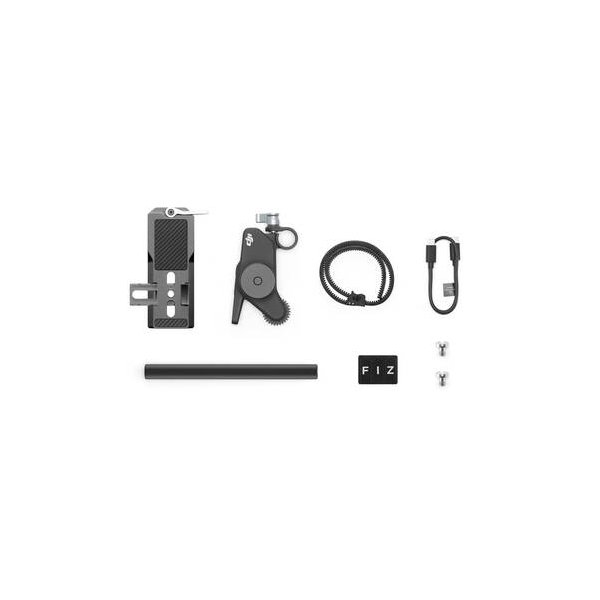
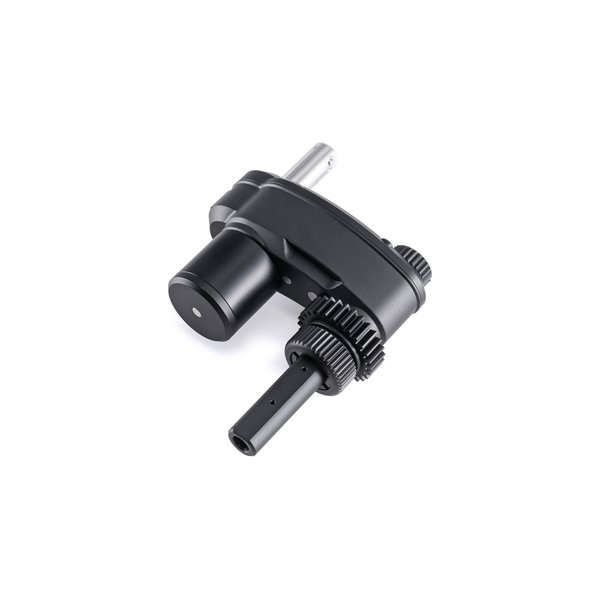
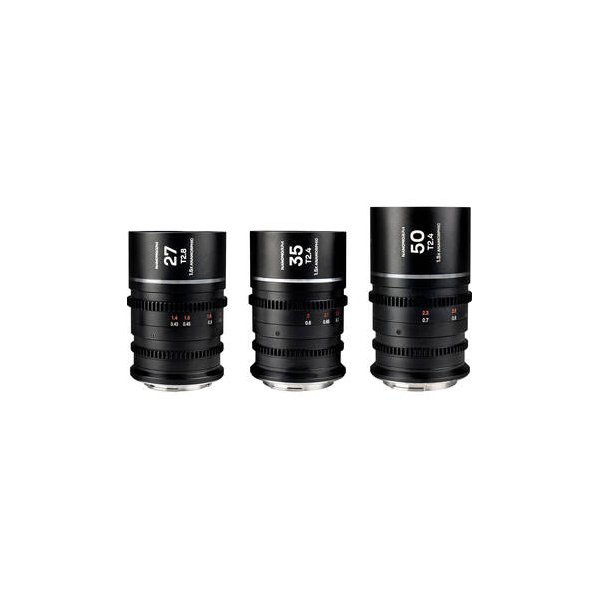
Related comparisons
The Ronin 4D integrates stabilization and LiDAR AF; the FX9 is a versatile cinema workhorse with superior image science.
See full comparison Ronin 4D vs KOMODO-XThe Ronin 4D is an all-in-one stabilized cinema camera; the KOMODO-X is a compact, modular global shutter powerhouse.
See full comparison Ronin 4D vs URSA Mini Pro 12KThe Ronin 4D offers unparalleled integrated stabilization; the URSA Mini Pro 12K delivers extreme resolution and post-production flexibility.
See full comparison Ronin 4D vs EOS C50The Canon EOS C50 offers traditional cinema flexibility; the DJI Ronin 4D delivers unparalleled integrated stabilization.
See full comparison