Technical specifications
- Sensor
- 1/1.3-inch CMOS
- Megapixels
- 38
- Max Resolution
- 4K UHD (3840x3840)
- Max Frame Rate
- 240fps @ 1080p
- Codec
- H.265
- ISO Range
- ISO 100–51200
- Log / Gamma
- D-Log M
- Stabilization
- Digital
- Ports
- USB-C
- Battery
- Removable Li-ion
- Weight
- 149g
- Dimensions
- 70.5×44.2×32.8 mm
- MSRP
- $399
Add your voice
Your ratings help other filmmakers choose the right camera.
Own it?
What do you use this for?
Field guide
Overview
The DJI Osmo Action 6 is a highly capable, ruggedized action camera designed for creators who need a reliable, go-anywhere imaging tool. It distinguishes itself with a unique dual-storage system, featuring 50GB of built-in memory alongside a microSD card slot, ensuring you never miss a shot if you run out of external media. Its robust build, capable of 20m underwater operation without a case, positions it as a direct competitor to the top-tier action cameras on the market, specifically targeting those who prioritize durability and ease of use in extreme environments.
Beyond its physical toughness, the Action 6 offers sophisticated software features like Super Slow-Motion, which utilizes 4x frame interpolation to reach up to 960fps, and advanced stabilization modes like HorizonSteady, which handles 360-degree roll axis jitters. The integration with the DJI Mimo app is central to the experience, providing seamless activation, firmware updates, and advanced post-production tools like dashboard overlays for depth and altitude data.
This camera is an excellent choice for high-speed sports enthusiasts, vloggers, and outdoor adventurers who need a camera that can handle intense conditions. Whether you are cycling, skiing, or diving, the combination of intuitive button controls, voice commands, and professional-grade features like D-Log M color profiles makes it a versatile workhorse for both casual content creation and more demanding production workflows.
Pros & Cons
Pros
50GB of built-in storage provides a critical safety net for recording if you forget your microSD card or run out of space.
20m native waterproof rating allows for significant underwater use without the bulk of an external housing.
HorizonSteady stabilization effectively eliminates 360-degree roll axis jitters, keeping footage level during intense maneuvers.
Super Slow-Motion feature uses 4x frame interpolation to achieve up to 960fps, perfect for high-speed sports analysis.
Built-in Mic Audio Backup allows for simultaneous recording from the camera's internal mic while using wireless transmitters, providing a safety audio track.
Cons
Super Slow-Motion is limited to 1080p output, regardless of the original recording resolution.
The camera is not waterproof when the Osmo Action 6 Macro Lens is installed, requiring careful planning for specific shooting setups.
Touchscreens do not function when fully submerged, forcing reliance on physical buttons for recording control.
The first 1.5 seconds and last 2 seconds of any video clip do not support generating super slow-motion clips.
Shutter/Record button protection automatically engages at 14m depth, which may limit quick access to standard shooting functions until surfaced.
Best Settings
Narrative Filmmaking
Use D-Log M for professional color grading in post-production. This profile enlarges the dynamic range, which is essential for high-contrast or multi-color scenes like gardens or fields. Ensure you are using a high-speed microSD card to handle the data rates associated with high-quality recording.
Documentary / Run-and-Gun
Enable RockSteady or RockSteady+ for stable, handheld footage that retains the dynamics of movement. If you are in a situation where you might miss a moment, use the SnapShot feature (press the Shutter/Record button while powered off) to start recording instantly with your last used settings.
Interview & Talking Head
Connect up to two DJI wireless microphone transmitters for high-quality audio. Enable the 'Built-in Mic Audio Backup' feature in the settings to record a safety track from the camera's internal microphone, ensuring you have a backup if the wireless signal drops.
Slow Motion
To use the Super Slow-Motion feature, you must record at a frame rate of at least 100fps in 4K, 2.7K, or 1080p (16:9 aspect ratio). Note that the generated slow-motion clips will be output in 1080p format.
Common Issues
Camera Not Recognizing Connected Device
What's happening: When connecting the camera to a computer or mobile device via cable, the device does not appear or file transfer does not initiate. Why: The camera may not be in the correct USB mode for the connected device. Fix: Enter the Control Center, tap the settings icon, select 'USB mode', and then reconnect the camera. Prevention: Always ensure the camera is powered on before connecting the cable and check the USB mode settings if you frequently switch between different devices.
Touchscreen Unresponsive Underwater
What's happening: The touchscreen does not respond to touch inputs while the camera is submerged. Why: The touchscreens are designed to function when wet, but they do not operate when fully submerged. Fix: Use the physical Shutter/Record button or the Quick Switch button to start/stop recording or change modes. Prevention: Plan your shooting modes before submerging the camera, as you will be limited to physical button controls once underwater.
Audio Issues After Underwater Use
What's happening: The microphone sounds muffled or the camera is no longer waterproof. Why: Drying the camera with hot air (like a hair dryer) can rupture the microphone membrane and the built-in breathable membrane. Fix: If the microphone holes are blocked by debris, rinse with fresh water while the camera is in a sealed state. Do not use heat to dry the unit. Prevention: Always allow the camera to dry naturally after underwater use and never use a hair dryer or heat source on the device.
Battery Not Charging or Abnormal Status
What's happening: The battery case shows a blinking red light or the battery is not charging. Why: An abnormal battery may be inserted, or the metal terminals are dirty. Fix: Ensure the battery is official and properly inserted. Clean the metal terminals on the battery ports with a clean, dry cloth. Prevention: Regularly inspect the battery terminals for buildup and only use official DJI batteries.
FAQ
- Does the Osmo Action 6 have built-in storage?
Yes, the Osmo Action 6 features 50GB of usable built-in storage. This allows you to record footage even if you do not have a microSD card installed. You can expand this storage by inserting a microSD card into the dedicated slot.
- How deep can the Osmo Action 6 go underwater?
The Osmo Action 6 is waterproof up to 20 meters deep without any additional housing. If you need to go deeper, you can use the Osmo Action 6 Waterproof Case, which extends the operating depth to 60 meters.
- Can the Osmo Action 6 record audio from wireless earbuds?
Yes, the Osmo Action 6 can connect to wireless earbuds to record audio. Ensure the earbuds are in pairing status, then connect them via the Control Center. Note that the earbuds are only used for recording and cannot be used for audio playback.
- What should I do if the Osmo Action 6 firmware update fails?
If the update fails, first try restarting both the camera and the DJI Mimo App. Ensure your mobile device has Wi-Fi and Bluetooth enabled, then reconnect the camera to the app and attempt the update again. If it continues to fail, contact DJI Support.
- Does the Osmo Action 6 support external microphones?
Yes, the Osmo Action 6 supports DJI wireless microphone transmitters. You can connect up to two transmitters simultaneously. You can adjust the audio parameters of the transmitters directly through the Wireless Microphone settings in the camera's Control Center.
- How do I use the SnapShot feature on the Osmo Action 6?
When the camera is powered off, press the Shutter/Record button once to power on the camera and immediately start recording. The camera will automatically power off after shooting if left idle for three seconds. By default, it uses your last used shooting settings.
- Can I use the Osmo Action 6 as a webcam?
Yes, the Osmo Action 6 can function as a webcam. Connect the camera to your computer using a USB cable and select 'Webcam' on the camera screen. The camera will then act as a standard webcam input device.
- How do I reset the connections on the Osmo Action 6?
If you have trouble connecting to the DJI Mimo App, swipe down from the top of the screen to enter the Control Center. Navigate to Settings > Wireless Connection > Reset Connection. This will reset all connections and Wi-Fi passwords on the camera.
Recommended Accessories
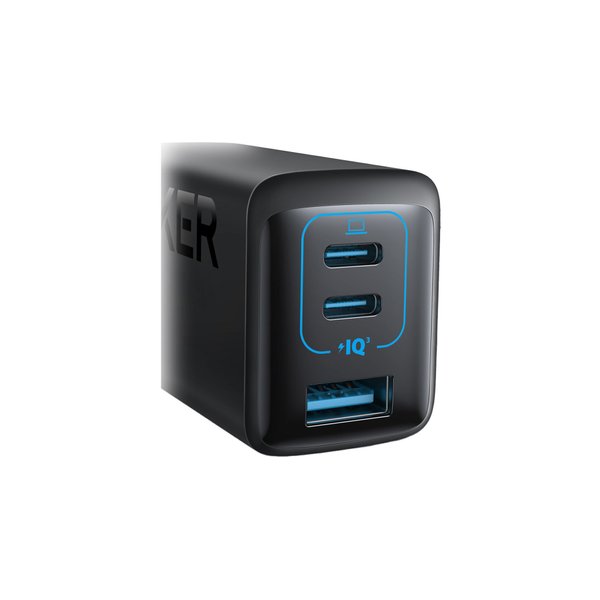
Anker PowerPort III 65W 3-Port USB Wall Charger
Anker
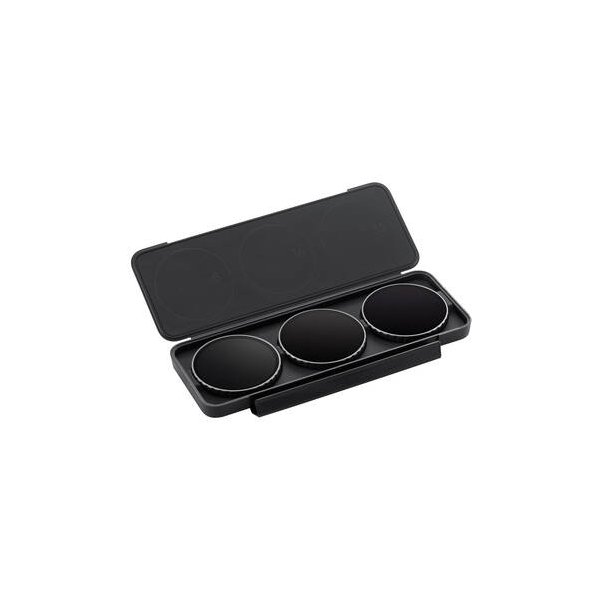
DJI Macro Lens for Osmo Action 6
DJI
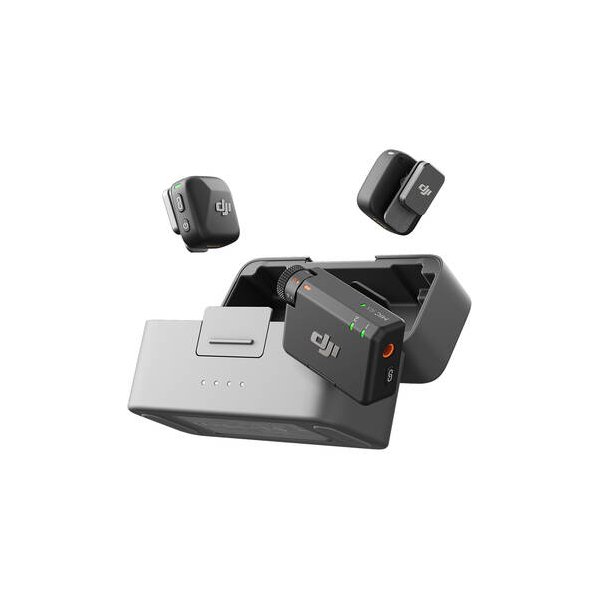
DJI Mic 2 2-Person Compact Digital Wireless Microphone System/Recorder for Camera & Smartphone (2.4 GHz)
DJI
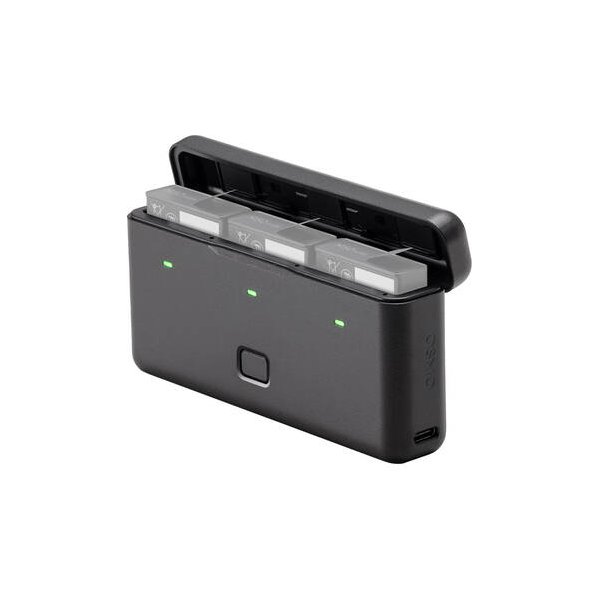
DJI Multifunctional Battery Case for Osmo Action 5/4/3
DJI
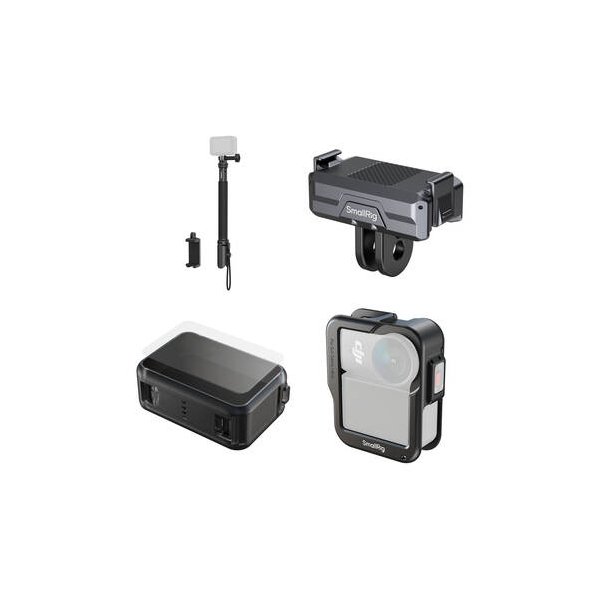
SmallRig Storage Bag for Action Cameras
SmallRig
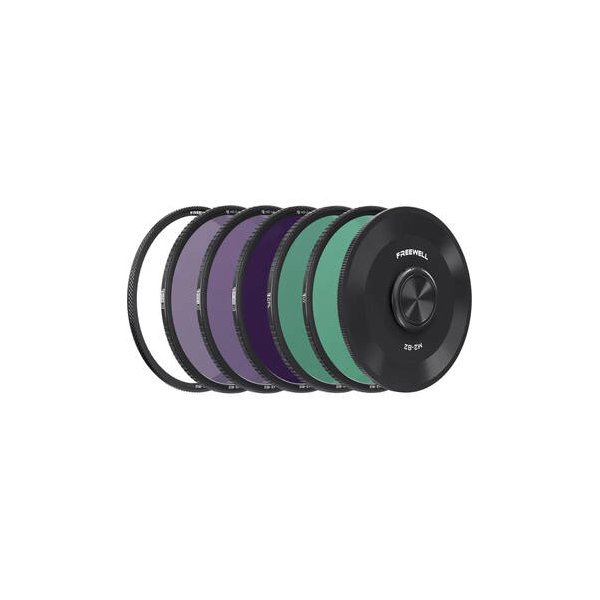
Freewell Split ND Filter Set for DJI Mavic 4 Pro (4-Pack)
Freewell
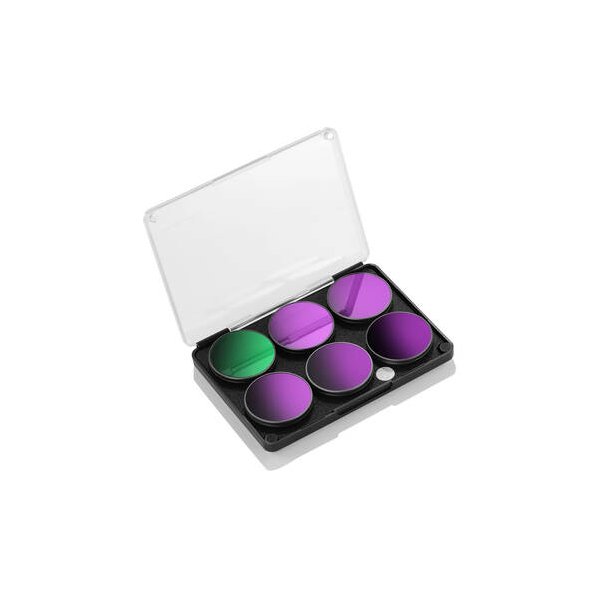
Neewer FL-A13 ND Filter Set for DJI Osmo Action 4/5 (6-Pack, CPL, ND8, ND16, ND32, ND64 & ND1000)
Neewer
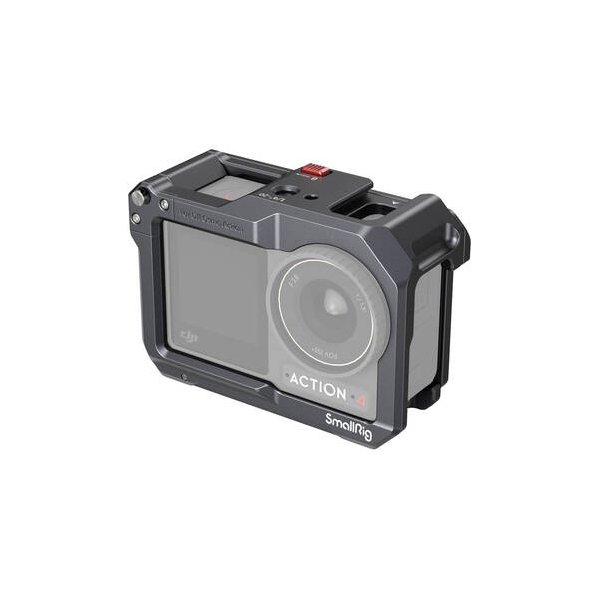
SmallRig Full Camera Cage for DJI Osmo Action 6 (Advanced Edition)
SmallRig
Related comparisons
The Osmo Action 6 Pro is for rugged adventures; the Osmo Pocket 3 excels in stabilized, cinematic vlogging.
See full comparison Osmo Action 6 Pro vs Insta360 X4The Osmo Action 6 Pro excels in traditional action footage with its larger sensor, while the Insta360 X4 dominates immersive 360-degree capture.
See full comparison Osmo Action 6 Pro vs Osmo Action 5 ProThe Osmo Action 6 Pro offers a specified 1/1.3-inch sensor and 4K 120fps, while the Osmo Action 5 Pro's details are largely undisclosed.
See full comparison