Technical specifications
- Sensor
- Super35 CMOS
- Sensor Size
- 26.2 x 13.8 mm
- Megapixels
- 8.85
- Mount
- Canon RF
- Max Resolution
- 4K DCI (4096x2160)
- Max Frame Rate
- 59.94fps @ 4K DCI
- Codec
- H.265, H.264
- Dynamic Range
- 16 Stops
- ISO Range
- ISO 2–102400
- Log / Gamma
- Wide DR, Canon Log 2, Canon Log 3, HDR-HLG, HDR-PQ
- Autofocus
- Dual Pixel CMOS AF
- Stabilization
- Digital, 5-Axis
- ND Filter
- 2–10 stop (5-position wheel)
- Ports
- 1x HDMI, 2x Mini XLR Mic/Line Input (+48 V Phantom Power), 1x 1/8" / 3.5 mm TRS, 1x 1/8" / 3.5 mm TRS Stereo Headphone, 1x Barrel (11.5 to 20VDC), 1x USB-C Video/Control Input/Output, 1x BNC (Timecode) Input/Output, 1x 2.5 mm Sub-Mini (LANC) Control
- Battery
- Canon BP-A Series
- Weight
- 1170g
- Dimensions
- 130.2 x 160 x 115.9 mm
- MSRP
- $5,499
Add your voice
Your ratings help other filmmakers choose the right camera.
Own it?
What do you use this for?
Field guide
Overview
The Canon EOS C70 is a unique beast in the Cinema EOS lineup, bridging the gap between traditional mirrorless form factors and professional cinema workflows. By utilizing the RF mount, it offers a compact, highly capable platform for shooters who need high-end image quality without the bulk of a traditional cinema camera. It is a compelling choice for documentary filmmakers, solo operators, and content creators who demand professional-grade features like internal ND filters and dual SD card slots in a package that can easily be rigged for gimbal work or handheld run-and-gun scenarios.
What truly sets the C70 apart is its integration of professional cinema features into a smaller body. The manual highlights its robust 4K workflow, including support for Cinema RAW Light and XF-AVC, alongside advanced monitoring tools like false color, waveform monitors, and customizable LUT application. The inclusion of Dual Pixel CMOS AF technology provides reliable autofocus performance, which is a massive advantage for solo shooters who cannot rely on a dedicated focus puller.
This camera is ideal for those who need a reliable A-camera for corporate, documentary, or high-end web content production. Its ability to handle complex workflows—like simultaneous proxy recording and ACES color grading—makes it a versatile workhorse. If you are looking for a camera that balances professional cinema output with the agility of a modern mirrorless system, the C70 is a top-tier contender.
Pros & Cons
Pros
Built-in ND filters (2/4/6/8/10 stops) provide essential exposure control without needing external matte boxes or filters.
Dual SD card slots allow for flexible recording options, including relay, double-slot backup, and simultaneous proxy recording.
Dual Pixel CMOS AF provides industry-leading autofocus performance, including face detection and subject tracking, which is invaluable for solo operators.
The RF mount allows for a wide range of high-quality native lenses and easy adaptation of EF glass via the EF-EOS R adapter.
Comprehensive professional monitoring tools, including waveform monitors, vectorscopes, and false color, are built directly into the firmware.
Cons
The camera lacks internal RAW recording to CFexpress, relying on SD cards which may limit high-bitrate recording options.
The compact body design means fewer physical buttons compared to larger Cinema EOS cameras, requiring more reliance on the touchscreen and menus.
The camera's cooling fan, while effective, can be audible in quiet environments if set to 'Always On' or 'Maximum' speed.
The lack of a built-in EVF makes it difficult to monitor in bright outdoor conditions without an external monitor or loupe.
The camera's reliance on a proprietary battery system (BP-A series) means you cannot use standard NP-F or V-mount batteries without additional adapters.
Best Settings
Narrative Filmmaking
Use the XF-AVC format at 4K resolution with a 10-bit 4:2:2 color space for maximum grading flexibility. Set your shutter angle to 180 degrees to maintain a natural motion blur. Use a custom picture profile like Canon Log 2 or 3 to maximize dynamic range for post-production color grading.
Documentary / Run-and-Gun
Enable Continuous AF with Face Detection to ensure your subject stays sharp while moving. Use the built-in ND filters to maintain a consistent aperture in changing light. Set the audio input to 'Automatic' for the built-in or external mic to ensure you don't clip audio during unpredictable interviews.
Interview & Talking Head
Set the camera to a fixed ISO (e.g., 800 for Canon Log 2) to minimize noise. Use the Focus Guide to ensure critical focus on the subject's eyes. If using an external mic, set the audio input to manual and monitor levels via headphones to ensure a clean signal.
Slow Motion
Use the Slow & Fast Motion recording mode. Note that this mode changes the frame rate; ensure you select a high shooting frame rate (e.g., 60fps or 120fps) while keeping your playback frame rate at 24p or 30p for the desired slow-motion effect.
Common Issues
Recording Stops Unexpectedly
What's happening: The camera stops recording during a take. Why: This is often caused by using an SD card that is too slow for the selected bitrate or a card that has become fragmented over time. Fix: Initialize the card using the camera's internal menu (Recording/Media Setup > Initialize Media). Ensure you are using a card that meets the recommended speed class (V60 or V90) for your chosen resolution and frame rate. Prevention: Regularly initialize your cards before important shoots and avoid using cards that have been partitioned or used in other devices without re-formatting.
Overheating Warnings
What's happening: The camera displays a temperature warning icon. Why: Continuous high-resolution recording in hot environments can cause the internal temperature to rise. Fix: If the icon turns red, stop recording and allow the camera to cool down. Ensure the fan is set to 'Automatic' or 'Always On' to assist with cooling. Prevention: Avoid leaving the camera in direct sunlight and ensure the air intake and exhaust vents are not obstructed.
Autofocus Hunting
What's happening: The camera struggles to lock focus or 'hunts' back and forth. Why: Autofocus may struggle with low-contrast subjects, repetitive patterns, or when using very small apertures (F13 or higher). Fix: Switch to manual focus and use the Focus Guide or Peaking to assist. If using AF, ensure the subject has sufficient contrast and is not behind glass or a reflective surface. Prevention: Use the Focus Guide to confirm focus manually when the camera's AF system is challenged by the scene.
Audio Distortion
What's happening: Recorded audio sounds clipped or distorted. Why: The input gain is set too high for the microphone or line-level source being used. Fix: Check the audio level meters on the screen. Adjust the manual gain dials on the side of the camera so that levels peak around -18dB to -20dB. Use the built-in attenuator if the signal is still too hot. Prevention: Always monitor audio with headphones during the shoot to catch distortion before it is recorded.
FAQ
- Can the Canon EOS C70 record 4K at 120fps?
Yes, the Canon EOS C70 supports high frame rate recording for slow motion. You can select shooting frame rates up to 120fps in the Slow & Fast Motion recording mode, depending on the sensor mode and resolution settings.
- What memory cards are compatible with the Canon EOS C70?
The Canon EOS C70 uses SD, SDHC, and SDXC memory cards. For reliable recording, especially in high-bitrate modes like RAW or 4K XF-AVC, it is recommended to use cards with a V60 or V90 Video Speed Class rating.
- Does the Canon EOS C70 have built-in ND filters?
Yes, the Canon EOS C70 features a built-in, motor-operated ND filter system. It offers 2, 4, and 6 stops by default, and can be extended to 8 and 10 stops via the menu settings.
- Can I use my existing EF lenses on the Canon EOS C70?
Yes, you can use EF lenses on the Canon EOS C70 by using a Canon EF-EOS R Mount Adapter. This allows for full autofocus and lens communication with compatible EF lenses.
- How do I update the firmware on the Canon EOS C70?
Firmware updates are performed via an SD card. You download the firmware file from the Canon website, save it to the root directory of an SD card, insert it into slot B, and navigate to the firmware update option in the System Setup menu.
- Does the Canon EOS C70 support internal RAW recording?
Yes, the Canon EOS C70 supports internal recording of Cinema RAW Light. Note that this requires high-speed SDXC cards, and some recording modes may be limited when using RAW.
- Can I output a clean signal from the HDMI port on the Canon EOS C70?
Yes, you can configure the HDMI output to be clean or to include status overlays. This is managed in the Monitoring Setup menu under OSD Output settings.
- How long can the Canon EOS C70 record continuously?
A single clip can be recorded continuously for up to 6 hours. After that, the camera will automatically create a new clip and continue recording.
Recommended Accessories
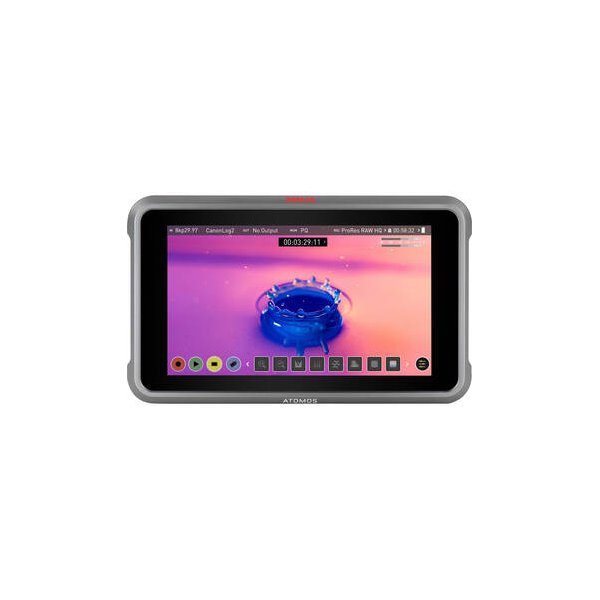
Atomos Ninja 5.2" 4K HDMI Recording Monitor
Atomos
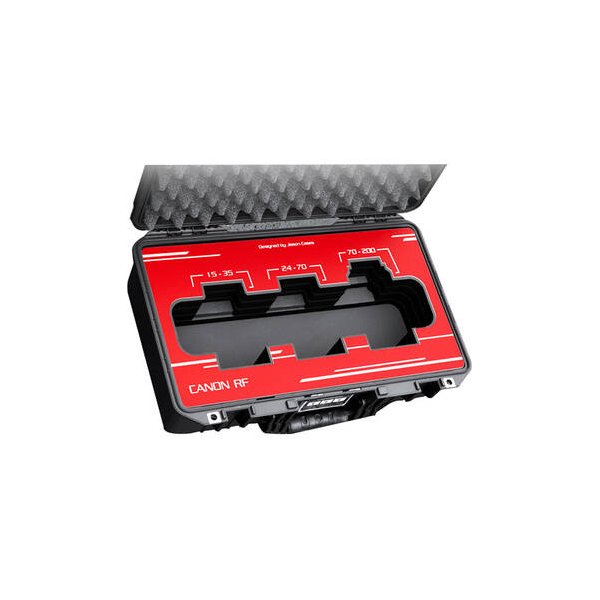
Canon RF 24-70mm f/2.8 L IS USM Lens
Canon
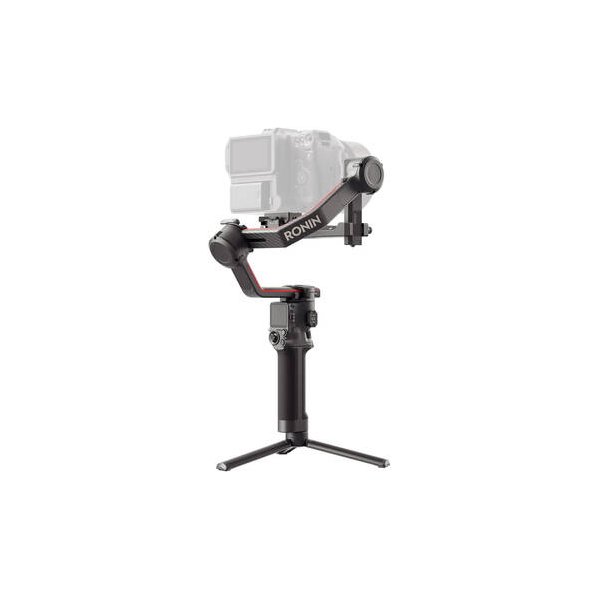
DJI RS 4 Pro Gimbal Stabilizer Combo
DJI

PORTKEYS BM5 Monitor Camera Control Cable for Select LANC Cameras (15.75")
PORTKEYS
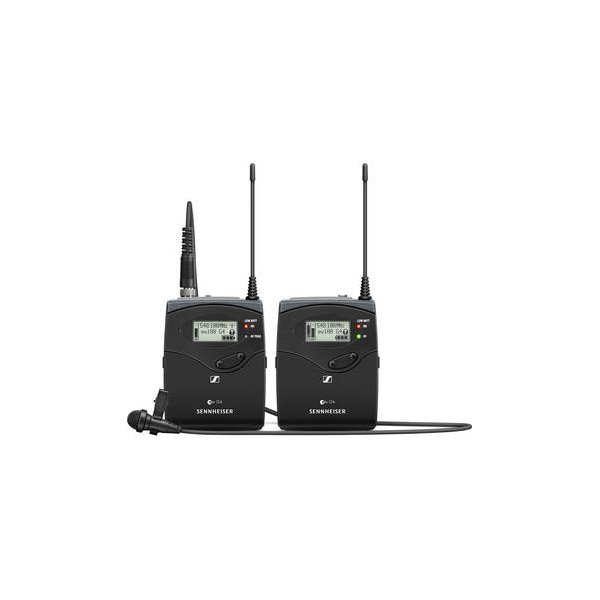
Sennheiser EW 112P G4 Camera-Mount Wireless Omni Lavalier Microphone System (A: 516 to 558 MHz)
Sennheiser
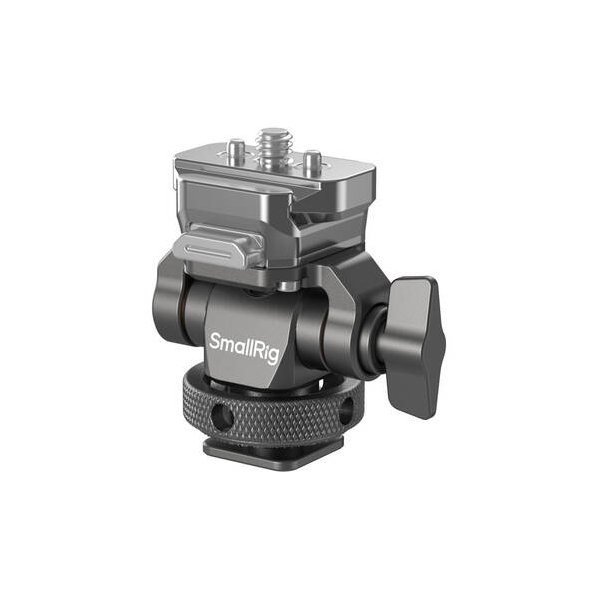
SmallRig Handheld Cage Kit for Canon EOS C70
SmallRig
Related comparisons
The C70 offers cinema-grade image with built-in NDs, while the FX3 excels in run-and-gun with IBIS and full-frame.
See full comparison EOS C70 vs EOS C300 Mark IIIThe C300 Mark III is a modular cinema workhorse; the C70 is a compact, run-and-gun powerhouse.
See full comparison EOS C70 vs Canon EOS C80The C80 delivers cinematic 6K Full-Frame without AF; the C70 offers versatile 4K Super35 with reliable Dual Pixel AF.
See full comparison