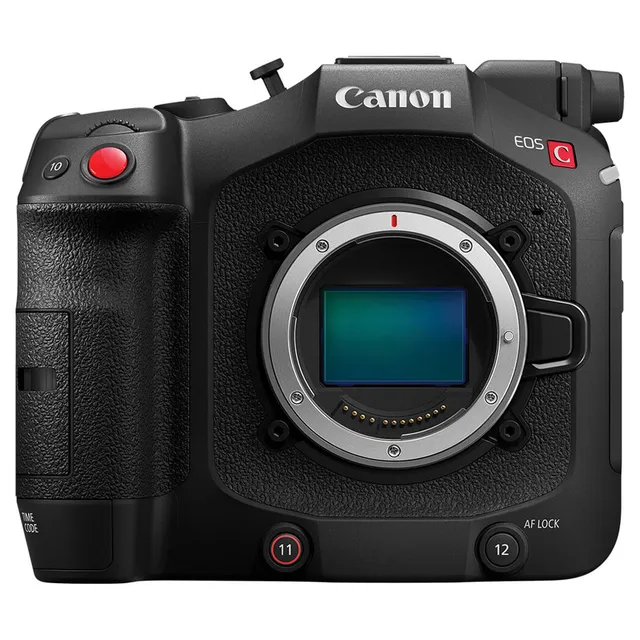
Technical specifications
- Sensor
- Full-Frame BSI Stacked CMOS
- Sensor Size
- 36.0 x 19.0 mm
- Megapixels
- 19.05
- Mount
- Canon RF
- Max Resolution
- 6K (6000x3164)
- Max Frame Rate
- 180fps @ 1080p
- Codec
- H.265
- Dynamic Range
- 16 Stops
- ISO Range
- ISO 100–102400
- Log / Gamma
- Canon Log 2, Canon Log 3, Rec2020, HDR-HLG, Rec709
- Stabilization
- Digital, 5-Axis
- ND Filter
- 2–10 stop (5-position wheel)
- Ports
- 1x BNC (12G-SDI), 1x HDMI, 2x Mini XLR, 1x 1/8" / 3.5 mm TRS Stereo Microphone Input on Camera Body, 1x 1/8" / 3.5 mm TRS Stereo Headphone, 1x Barrel (23.7 to 25VDC), 1x RJ45 (XC) Control, 1x USB-C Monitor, 1x BNC (Timecode) (Shared with Video Output), 1x 2.5 mm Sub-Mini (LANC) Control
- Battery
- Canon BP-AN Series
- Weight
- 1300g
- Dimensions
- 160 x 138 x 116 mm
Add your voice
Your ratings help other filmmakers choose the right camera.
Own it?
What do you use this for?
Field guide
Overview
The Canon EOS C80 positions itself as a versatile digital cinema camera, designed for cinematographers, filmmakers, and content creators who demand high-quality imaging and flexible workflows. It's built to integrate seamlessly into professional production environments, offering robust recording options from Cinema RAW Light to various XF-AVC and XF-HEVC S codecs. The camera's modular design, RF lens mount, and extensive connectivity options make it a strong contender for a wide range of productions, from narrative filmmaking to demanding documentary work.
Key capabilities include internal 6K/4K RAW recording to SDXC cards, simultaneous proxy recording for efficient post-production, and advanced autofocus features powered by Dual Pixel CMOS AF with subject detection and tracking. Filmmakers will appreciate the comprehensive custom picture settings, including Canon Log 2 and 3, and the ability to import 3D LUTs as Look Files. The built-in ND filters and extensive audio input options further enhance its adaptability on set.
This camera is ideal for professionals seeking a compact yet powerful cinema camera that can handle diverse shooting scenarios. Its ability to record high-quality internal RAW, coupled with robust proxy workflows and advanced monitoring tools, makes it suitable for productions requiring maximum image fidelity and streamlined post-production. Whether you're shooting a feature, a commercial, or a fast-paced documentary, the C80 offers the tools to capture stunning visuals with Canon's renowned color science.
Pros & Cons
Pros
Internal 6K/4K Cinema RAW Light recording to SDXC cards provides maximum image quality and flexibility in post-production, eliminating the need for external recorders for primary RAW capture.
Simultaneous 2K proxy recording to a second SD card streamlines offline editing workflows, allowing for quicker turnaround times without compromising the quality of the main footage.
Dual Pixel CMOS AF with advanced subject detection (face/head, eyes, body of person/animal) and tracking ensures reliable and accurate focus, crucial for dynamic shooting situations and solo operators.
Built-in ND filters (2, 4, 6, 8, 10 stops) are motor-operated and offer extended range, providing precise exposure control in varying light conditions without needing external filter trays or matte boxes.
Extensive audio capabilities with 4-channel 24-bit 48kHz Linear PCM recording, multiple input terminals (Mini XLR, 3.5mm MIC, Multi-Function Shoe), and individual level control, ensuring professional-grade sound capture.
Highly customizable with 13 assignable buttons on the camera body and 4 on the RC-V100 remote, allowing filmmakers to quickly access frequently used functions and tailor the camera to their specific workflow.
Cons
Slow & Fast Motion recording above 60P (e.g., 120fps, 180fps) disables proxy recording and sub recording clips, forcing a choice between high frame rates and efficient proxy workflows.
Image stabilization (Digital IS) is not available when recording in RAW format or when HDMI RAW output is enabled, requiring careful consideration of camera support for high-resolution RAW capture.
Magnification for focus assistance is not available in Full Frame or Super 35mm (Cropped) sensor modes when slow & fast motion recording frame rates exceed 60P, which can hinder critical focus in high-speed scenarios.
SDHC cards will split video stream files approximately every 4 GB due to FAT32 formatting, which, while seamless in playback, can create more files to manage during data transfer.
Flicker reduction is not available during slow & fast motion recording when frame rates exceed 60P or when the system frequency is 24.00 Hz, potentially leading to flickering issues under artificial lighting in these modes.
The camera's image stabilizer will not work with lenses exceeding 1000mm focal length, limiting stabilization options for extreme telephoto shots.
Best Settings
Narrative Filmmaking
For narrative work, maximizing image quality and post-production flexibility is paramount. I'd lean into the camera's RAW capabilities and robust color science.
- Picture Profile: Canon Log 2 or Canon Log 3 (MENU > [/ Custom Picture] > [Select / File] > C2 or C3). These logarithmic gamma curves are designed to maximize dynamic range and retain detail in highlights and shadows, essential for extensive color grading in post. Canon Log 2 offers the widest dynamic range, while Canon Log 3 provides a slightly easier grading starting point.
- Codec: RAW LT (Cinema RAW Light) (MENU > [Æ Recording/Media Setup] > [Main Rec Format]). This 12-bit RAW format provides the most flexibility for color correction and visual effects, capturing the full sensor data. For external recording, consider HDMI RAW output to a compatible recorder for 6K RAW data.
- Resolution & Frame Rate: 6000x3164 at 23.98P or 24.00P for a cinematic look (MENU > [Æ Recording/Media Setup] > [Main Resolution] / [Frame Rate]). This provides a true 6K resolution for reframing or downsampling to 4K/UHD with superior detail. If 6K RAW is not feasible, 4096x2160 XF-AVC YCC422 10 bit Intra-frame at 480 Mbps offers excellent quality for 4K delivery.
- Audio Settings: For critical dialogue, use external Mini XLR microphones connected to INPUT 1/2. Set Audio Format to Linear PCM, 24 bit, 48 kHz, 4 channels (MENU > [Æ Recording/Media Setup] > [ / Main Audio]). Manually adjust audio levels (MENU > [¡ Audio Setup] > [Audio Rec Level] > [M]) to maintain precise control and avoid clipping, monitoring closely with headphones.
Documentary / Run-and-Gun
In fast-paced documentary or run-and-gun scenarios, efficiency, reliability, and quick adjustments are key. The C80's proxy recording and autofocus features shine here.
- Picture Profile: BT.709 Wide DR (MENU > [/ Custom Picture] > [Select / File] > C4) or Canon 709 (C1). These profiles offer a wide dynamic range that's suitable for direct-to-delivery or minimal grading, providing good-looking footage straight out of the camera, which is crucial when time is limited.
- Codec: XF-HEVC S YCC422 10 bit Long GOP (MENU > [Æ Recording/Media Setup] > [Main Rec Format]) for a balance of quality and file size. Record 4096x2160 or 3840x2160 at 59.94P/50.00P for smooth motion and flexibility in editing. Simultaneously record 2K Proxy clips (XF-AVC S YCC420 8 bit at 16 Mbps) to SD card B (MENU > [Æ Recording/Media Setup] > [2nd Card Rec Functions] > [ Main / Proxy Rec]) for immediate offline editing.
- Autofocus: Enable Continuous AF (MENU > [v Camera Setup] > [Continuous AF] > [Enable]) with Subject Detection Function set to [People] or [Animals] and Eye Detection [On] (MENU > [v Camera Setup] > [Subject to detect] / [Eye Detection]). This ensures subjects remain in focus even when moving, freeing the operator to concentrate on framing. Assign One-Shot AF to a button for quick manual overrides.
- Image Stabilization: Activate Digital IS [High] (MENU > [v Camera Setup] > [Digital IS] > [On], [Digital IS Mode] > [High]) to compensate for camera shake, especially when shooting handheld or on the move. Ensure Motion Vector For Digital IS is [Enable] for very effective stabilization.
- Power: Utilize the AC adapter when possible, but always have a fully charged BP-A60N battery attached as a backup to prevent power loss during accidental disconnections (Page 21).
Interview & Talking Head
For controlled interview setups, stability, precise exposure, and pristine audio are paramount. The C80 offers excellent tools for this.
- Picture Profile: Canon Log 3 (MENU > [/ Custom Picture] > [Select / File] > C3) for a good balance of dynamic range and a slightly less demanding grade than Log 2, or BT.709 Standard (C5) if a broadcast-ready look is desired with minimal post-production.
- Codec: 3840x2160 XF-AVC YCC422 10 bit Intra-frame at 360 Mbps (MENU > [Æ Recording/Media Setup] > [Main Rec Format] / [Main Resolution] / [Bit Rate]) at 23.98P/25.00P for high-quality, easily editable footage. Intra-frame codecs are ideal for interviews as they provide consistent quality per frame.
- Audio Settings: Connect high-quality external microphones to INPUT 1 and INPUT 2. Set Input Type to MIC+48V if using condenser mics requiring phantom power (Page 100). Set Audio Recording Level to Manual (MENU > [¡ Audio Setup] > [Audio Rec Level] > [M]) and adjust levels carefully using the audio level dials, aiming for peaks around -18dB to -12dB. Enable Audio Peak Limiter (MENU > [¡ Audio Setup] > [INPUT Limiter] > [On]) as a safeguard against unexpected loud sounds.
- Focus: Use Manual Focus (MF) with Peaking (Level 1 or 2) (Press PEAKING button) and Magnification (2x or 5x) (Press MAGN. button) for critical focus on the subject's eyes. The Dual Pixel Focus Guide can also be helpful (MENU > [A Assistance Functions] > [Focus Guide]).
- White Balance: Perform a Custom White Balance (MENU > [WB] button, then press Å button) using a gray card or white object under the actual interview lighting conditions to ensure accurate color reproduction (Page 76).
Slow Motion
Achieving smooth slow-motion requires specific frame rate and sensor mode configurations, with some important caveats.
- Recording Mode: Select Slow & Fast Motion Recording (MENU > [Æ Recording/Media Setup] > [Recording Mode] > [Slow & Fast Motion]). Remember, audio is not recorded in this mode, so plan for external audio capture and synchronization in post.
- Sensor Mode: For maximum frame rates, set Sensor Mode to [Super 35mm (Cropped)] (MENU > [Æ Recording/Media Setup] > [Sensor Mode]). Note that this will apply a crop factor (e.g., 1.46x for 4368x2304 or 1.54x for 3840x2160), affecting your lens's field of view.
- Resolution & Frame Rate: For 120fps, use XF-AVC YCC422 10 bit Long GOP at 2048x1080 or 1920x1080 (MENU > [Æ Recording/Media Setup] > [Main Resolution] / [Slow & Fast Frame Rate]). The camera supports up to 180fps in some modes (e.g., XF-HEVC S YCC420 10 bit at 1920x1080), but check the specific tables for your desired resolution and system frequency (Pages 112-114). Be aware that frame rates exceeding 60P in S&F motion may disable proxy recording and magnification.
- Shutter Speed: Set the shutter speed to 1/250 or 1/500 (or higher, depending on frame rate) to achieve a natural motion blur for slow motion (e.g., 180-degree shutter rule). Use Shutter Mode [Speed] (MENU > [v Camera Setup] > [Shutter Mode] > [Speed]) and adjust manually.
- Black Balance: Perform a Black Balance adjustment (MENU > [v Camera Setup] > [ABB] > [OK]) after activating slow & fast motion recording or changing the shooting frame rate, as this is a critical step for optimal image quality in these modes (Page 44).
Common Issues
Camera Controls Unresponsive or Disabled
- What's happening: Buttons or controls on the camera body do not respond to input.
- Why: The camera's key lock function is activated, preventing accidental changes to settings.
- Fix: Set the POWER switch to CAMERA mode. If the issue persists, check the [Key Lock] setting in MENU > [B System Setup] and ensure it's not set to [All Buttons]. You can also set it to [All Except REC Button] if you only want to lock other controls.
- Prevention: Be mindful of the POWER switch position. If you frequently use assignable buttons, consider setting [Key Lock] to [All Except REC Button] to prevent accidental changes to other settings while still allowing recording.
Recording Stops Unexpectedly or Cannot Start
- What's happening: The camera stops recording mid-clip, or pressing the REC button does not initiate recording.
- Why: This can be due to a full memory card, a card that doesn't meet speed requirements, corrupted file control information, or the power supply reaching a low warning level.
- Fix:
- Card Full: Delete unnecessary clips (A 148) or initialize the card (A 36) after backing up important data. Alternatively, switch to the other card slot if available.
- Card Speed: Ensure you are using a recommended card (V90 for RAW/high bitrate 4K, V60 for other 4K, V30/U3 for lower bitrates) (A 34). If the card's write speed is too slow, recording will stop.
- Corrupted Files: Turn the camera off and on, then remove and reinsert the card. If the problem persists, consult a Canon Service Center.
- Low Power: Check the power source. If using a battery, replace it with a fully charged one. If using AC, ensure it's connected properly and the voltage is above the warning level (MENU > [B System Setup] > [DC IN Warning (V)]).
- Prevention: Always initialize new cards in the camera before important shoots. Carry multiple high-speed, compatible SDXC cards. Monitor remaining recording time and battery levels regularly. Use an AC adapter for stationary shoots and keep a fully charged battery attached as a backup.
Audio is Distorted or Not Recorded
- What's happening: Recorded audio sounds distorted, is too low, or no audio is captured at all.
- Why: This often stems from incorrect audio input settings, improper microphone connection, or incorrect audio recording levels.
- Fix:
- Input Selection: Verify the correct audio input source is selected (MENU > [¡ Audio Setup] > [Audio Input Selection]) for CH1/CH2 and CH3/CH4 (A 101). Ensure the INPUT 1/INPUT 2 switches are set to LINE, MIC, or MIC+48V as appropriate for your microphone (A 100).
- Microphone Power: If using condenser microphones, ensure phantom power (+48V) is enabled for XLR inputs or plug-in power for the 3.5mm MIC terminal (MENU > [¡ Audio Setup] > [MIC Input] > [MIC (with Power Supply)]) (A 100, 101).
- Recording Level: Set audio recording levels manually (MENU > [¡ Audio Setup] > [Audio Rec Level] > [M]) and adjust using the audio level dials. Monitor with headphones (A 102). Consider activating the Microphone Attenuator (20 dB) (MENU > [¡ Audio Setup] > [INPUT 1 Mic Att.] / [INPUT 2 Mic Att.] > [On]) for very loud sources (A 103).
- Prevention: Always perform a sound check before recording. Use headphones to monitor audio levels and quality. Double-check all cable connections and input settings for each microphone or audio device.
Camera Overheats (Yellow/Red 'b' Icon Appears)
- What's happening: The 'b' icon appears in yellow or red on the screen, indicating the camera's internal temperature is rising.
- Why: Continuous use, especially in high ambient temperatures or with demanding recording settings (e.g., high resolution/frame rate RAW), can cause the internal temperature to rise.
- Fix: If the 'b' icon turns red, turn off the camera and allow it to cool down. If it's yellow, you can continue recording, but be aware that it may eventually turn red. Ensure the fan's air vents are not obstructed (A 43). Consider setting the fan mode to [Always On] or [Maximum] in standby (MENU > [B System Setup] > [Fan Mode] / [Fan Speed (STBY)]) if operating in hot environments.
- Prevention: Avoid wrapping the camera in cloth or other materials during use. Operate in cooler environments when possible. Use a tripod to minimize skin contact during long shoots in hot conditions. If shooting in demanding conditions, consider using lower resolution/bitrate settings or taking breaks to allow the camera to cool.
Wi-Fi Connection Issues or Dropped Signal
- What's happening: The camera cannot connect to a Wi-Fi network, or the wireless signal is weak/drops frequently.
- Why: This can be due to incorrect network settings, interference from other devices, or physical obstructions.
- Fix:
- Check Settings: Verify that the camera's Wi-Fi settings (SSID, authentication method, encryption key) match those of the access point (A 173, 231). If all network settings were reset, reconfigure them (A 172).
- Interference: Move the camera and network device closer together, ensuring an unobstructed line of sight. Avoid placing cables near the camera's built-in wireless antenna. Switch to the 5 GHz band (IEEE 802.11a/n/ac) or a different channel to reduce interference from other 2.4 GHz devices like microwaves or cordless phones (A 224).
- IP Address Conflict: If using multiple devices on the same network, ensure there are no IP address conflicts. If using manual IP settings, consider switching to [Automatic Setting] if a DHCP server is available (A 173).
- Prevention: Plan your network setup in advance, especially for multi-camera or remote control scenarios. Use secure passwords. For critical remote operations, consider a wired Ethernet connection for greater stability.
FAQ
- What type of memory cards does the Canon EOS C80 use for recording?
The Canon EOS C80 records clips, photos, and other files on SD, SDHC, or SDXC memory cards. For RAW format recording, only SDXC cards are compatible. It's recommended to use cards with UHS Speed Class U3 and Video Speed Class V30, V60, or V90, depending on your chosen recording format and resolution, to ensure stable recording performance.
- Can the Canon EOS C80 record RAW video internally?
Yes, the Canon EOS C80 can record Cinema RAW Light internally to SDXC memory cards. This allows for maximum image quality and flexibility in post-production. You can record in resolutions such as 6000x3164 or 4368x2304 at 12-bit color depth, with various frame rates and bit rates up to 678 Mbps.
- Does the Canon EOS C80 support simultaneous proxy recording?
Yes, the Canon EOS C80 supports simultaneous proxy recording. While recording a primary clip to SD card A, you can record a smaller 2K proxy clip to SD card B. These proxy clips have associated file names with the main clips and are ideal for offline editing, streamlining your post-production workflow. This feature is available with various XF-AVC and XF-HEVC S formats.
- What are the autofocus capabilities of the Canon EOS C80?
The Canon EOS C80 features Dual Pixel CMOS AF technology, offering advanced autofocus performance with compatible lenses. It supports One-shot AF and Continuous AF, along with subject detection for faces, heads, eyes, or bodies of people and animals. The camera also includes subject tracking, which keeps a selected subject in focus even if it moves within the frame.
- How do I adjust the white balance on the Canon EOS C80?
The Canon EOS C80 offers several white balance modes: Custom White Balance (two sets, A and B), Preset White Balance (Daylight 5600K, Tungsten 3200K), Color Temperature (2000K to 15000K), and Automatic White Balance (AWB). You can also adjust color compensation (CC) values. For precise results, a custom white balance using a gray card is recommended under your specific lighting conditions.
- Can I use external microphones with the Canon EOS C80?
Absolutely. The Canon EOS C80 is well-equipped for professional audio, featuring two Mini XLR 3-pin INPUT terminals for balanced microphones or line-in sources, and a 3.5mm stereo mini-jack MIC terminal. It supports phantom power (+48V) for condenser microphones via the XLR inputs and plug-in power for the 3.5mm MIC terminal. Audio can be recorded in 4-channel 24-bit 48kHz Linear PCM.
- What are the slow and fast motion recording options on the Canon EOS C80?
The Canon EOS C80 supports Slow & Fast Motion recording with frame rates up to 180fps, depending on the resolution and sensor mode. For example, in Super 35mm (Cropped) mode, you can achieve 120fps in XF-AVC YCC422 10 bit at 2048x1080. It's important to note that audio is not recorded in this mode, so external audio solutions are necessary. Also, some features like proxy recording may be limited at higher frame rates.
- Does the Canon EOS C80 have built-in ND filters?
Yes, the Canon EOS C80 features built-in, motor-operated ND filters. You can select from 5 density levels, offering 2, 4, 6, 8, or 10 stops of light reduction. This is incredibly useful for maintaining desired aperture and shutter speed in bright conditions, helping to achieve shallower depth of field or proper motion blur without external accessories.
- How long does it take to charge the Canon EOS C80 batteries?
Charging times for the Canon EOS C80 battery packs vary. The included BP-A30N battery pack takes approximately 175 minutes (2 hours 55 minutes) to fully charge using the supplied CG-A20 Battery Charger. The optional BP-A60N battery pack takes about 310 minutes (5 hours 10 minutes). Charging should be done within a temperature range of 0°C to 40°C (32°F to 104°F).
- Can I control the Canon EOS C80 remotely?
Yes, the Canon EOS C80 offers multiple remote control options. You can use the RC-V100 Remote Controller for wired control, or utilize network functions like Browser Remote via a web browser on a connected device. Additionally, the Canon App (Content Transfer Professional) and XC Protocol compatible controllers/applications allow for remote operation and monitoring from smartphones or other network devices.
Recommended Accessories
- SmallHD Cine 7 Monitor — high-bright external monitor for critical focus and exposure. Shop on Amazon
- Tilta Advanced Kit for Canon C80 — robust cage with V-mount plate for power and accessory mounting. Shop on Amazon
- Bright Tangerine Misfit Kick 3-Stage Matte Box — professional matte box for filtration and flare control. Shop on Amazon
- Teradek Bolt 4K LT 750 — reliable wireless video transmission for director/client monitoring. Shop on Amazon