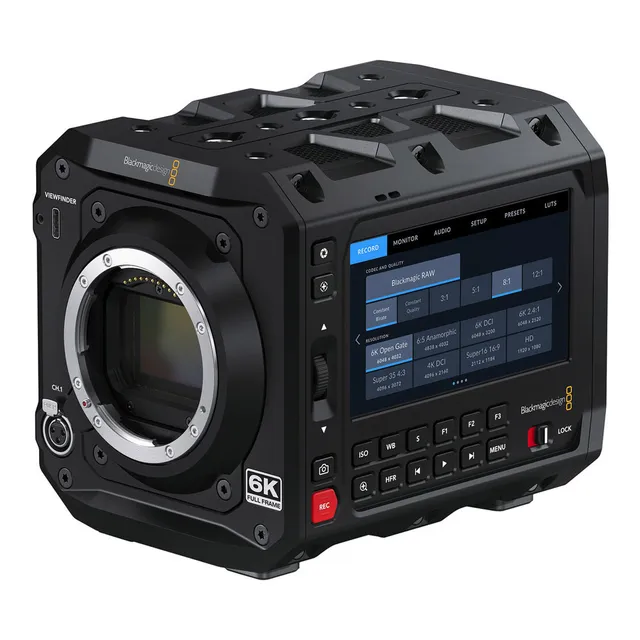
Technical specifications
- Sensor
- Full-Frame CMOS
- Sensor Size
- 36 x 24 mm
- Megapixels
- 24.5
- Mount
- Canon EF
- Max Resolution
- 6K (6048x4032)
- Max Frame Rate
- 60 fps (6048 x 4032), 120 fps (4096 x 2160)
- Codec
- Blackmagic RAW
- Dynamic Range
- 13 Stops
- ISO Range
- ISO 100–25600
- Log / Gamma
- Blackmagic RAW Film, Extended Video, Video
- Autofocus
- Contrast-based
- Stabilization
- No
- ND Filter
- No
- Ports
- 1x BNC (12G-SDI), 1x 1/8" / 3.5 mm TRRS Headphone/Mic Headphone, 1x 1/8" / 3.5 mm TRS, 1x Mini XLR Mic/Line Input (+48 V Phantom Power), 1x LEMO 2-Pin (12VDC), 2x USB-C, 1x BNC (Reference, Timecode), 1x RJ45 (10 Gigabit Ethernet)
- Battery
- Sony BP-U Series
- Weight
- 2370g
- Dimensions
- 257.3 x 178 x 178 mm
- MSRP
- $2,995
Add your voice
Your ratings help other filmmakers choose the right camera.
Own it?
What do you use this for?
Field guide
Overview
The Blackmagic PYXIS 6K is a bold departure from the traditional cinema camera form factor, prioritizing a modular, box-style design that is clearly aimed at cinematographers who need to build a rig tailored to specific production needs. By offering interchangeable side plates and multiple mounting points, Blackmagic is positioning this camera as a highly versatile tool for everything from gimbal work to complex studio setups. It competes directly with other modular cinema cameras, but distinguishes itself by integrating the Blackmagic RAW workflow and a full-frame sensor into a compact, highly customizable chassis.
What makes the PYXIS 6K particularly compelling is its ability to record dual streams—full-resolution 12-bit Blackmagic RAW alongside small H.264 proxies—directly to CFexpress cards or USB-C flash disks. This, combined with its native integration with Blackmagic Cloud, allows for a seamless proxy-to-edit workflow that can start while you are still on set. The camera also features a custom optical low-pass filter designed to deliver precise skin tones and organic color science, which is a hallmark of the Blackmagic ecosystem.
This camera is an excellent choice for independent filmmakers, documentary shooters, and content creators who require a high-end image but need the flexibility to strip the camera down for run-and-gun work or build it up for narrative productions. Its ability to handle vertical shooting metadata and its robust connectivity options, including 12G-SDI and Ethernet, make it a future-proof workhorse for modern, multi-platform productions.
Pros & Cons
Pros
Modular box design with multiple 1/4 and 3/8 mounting points allows for extreme customization for any rig configuration
Dual-stream recording of 12-bit Blackmagic RAW and H.264 proxies enables immediate cloud-based editing workflows
Full-frame sensor with 13 stops of dynamic range provides a cinematic look with excellent highlight and shadow retention
Built-in streaming engine supports direct output to YouTube, Facebook Live, and Twitch via Ethernet or smartphone tethering
Records directly to fast CFexpress Type B cards or high-capacity USB-C flash disks, simplifying media management
Cons
High frame rate recording (e.g., 4K120) requires windowing the sensor, which results in a significant crop factor
The camera lacks built-in ND filters, requiring external matte boxes or screw-on filters for outdoor shooting
Requires specific, high-speed USB-C flash disks for reliable 6K recording; standard consumer drives may cause dropped frames
The boxy form factor is not ergonomic for handheld shooting without additional handles or a cage system
Requires a 2.5mm Hex key to swap side plates, which is not ideal for rapid configuration changes on set
Best Settings
Narrative Filmmaking
Use the 'Film' dynamic range setting to maximize latitude for color grading in DaVinci Resolve. Record in Blackmagic RAW at a 3:1 or 5:1 constant bitrate for the highest quality. Set your project frame rate to 23.98 or 24fps and use a 180-degree shutter angle for natural motion blur.
Documentary / Run-and-Gun
Use 'Extended Video' dynamic range for a finished look that requires minimal grading. Enable 'Auto' vertical recording if shooting for social media. Use a 1G Ethernet connection or smartphone tethering to sync proxies to Blackmagic Cloud in real-time for remote editing.
Interview & Talking Head
Set the camera to 'Video' dynamic range for a high-contrast, ready-to-deliver look. Use the mini XLR input with phantom power enabled for professional microphones. Ensure audio levels are monitored via the on-screen meters, keeping peaks in the upper green zone to avoid clipping.
Slow Motion
Enable 'Off Speed Recording' to access higher frame rates. Note that 1080 HD allows up to 120fps, but higher resolutions like 6K DCI are limited to 48fps. Always check the 'Maximum Sensor Frame Rates' table, as higher frame rates may require windowing the sensor, which changes your effective field of view.
Common Issues
Dropped Frames During Recording
What's happening: The camera displays a dropped frame indicator or stops recording unexpectedly. Why: The storage media (CFexpress card or USB-C disk) is not fast enough to keep up with the selected resolution, frame rate, or codec quality. Fix: Check the data rate calculator on the Blackmagic website to ensure your media meets the requirements. If using a USB-C disk, ensure it is a high-speed model recommended by Blackmagic. Prevention: Always format your media using the camera's internal 'format' tool before a shoot.
Audio Clipping or Distortion
What's happening: Recorded audio sounds distorted or 'crunchy'. Why: The input levels are exceeding 0 dBFS, causing the signal to clip. Fix: Adjust the channel level sliders in the 'Audio' tab. Ensure your peaks stay in the green zone and do not hit the red. Prevention: Use the -20dB pad option if you are recording in a loud environment.
Camera Not Recognized by Computer
What's happening: The computer does not see the camera or the storage media when connected via USB-C. Why: The USB-C cable may not be data-capable, or the camera is not in the correct mode. Fix: Use a high-quality, data-rated USB-C cable. Ensure the camera is powered on and that you are using the correct port. Prevention: Always use the cables provided with your gear or certified high-speed data cables.
Hot Pixels on Sensor
What's happening: Small, bright, or colored pixels appear in the image, especially in dark areas. Why: Sensor pixels can change brightness over time, a common occurrence in all digital sensors. Fix: Put the lens cap on and run the 'Pixel Recalibration' feature in the 'Setup' menu. Prevention: Run this calibration periodically or whenever you notice new hot pixels.
FAQ
- Can the Blackmagic PYXIS 6K record to external SSDs?
Yes, the Blackmagic PYXIS 6K features a rear USB-C port that supports recording directly to high-capacity USB-C flash disks. It is recommended to use fast drives capable of handling 6K data rates to avoid dropped frames. You can check the Blackmagic support website for a list of recommended drives.
- Does the Blackmagic PYXIS 6K have built-in ND filters?
No, the Blackmagic PYXIS 6K does not include built-in ND filters. You will need to use external ND filters, such as those in a matte box or screw-on filters, to control exposure in bright lighting conditions.
- What type of memory cards does the Blackmagic PYXIS 6K use?
The Blackmagic PYXIS 6K uses CFexpress Type B cards. These cards are designed to support the high data rates required for 6K recording. You can also use USB-C flash disks for increased recording times.
- How do I enable phantom power on the Blackmagic PYXIS 6K?
To enable phantom power, go to the 'Audio' tab in the menu, set your channel source to 'XLR - Mic', and tap the +48v icon. Always ensure your microphone is connected before turning phantom power on, and turn it off before disconnecting the mic.
- Can the Blackmagic PYXIS 6K shoot vertical video?
Yes, the Blackmagic PYXIS 6K supports vertical recording. You can set it to 'Auto' to tag clips based on the camera's orientation, or use 'Lock Vertical' to ensure all clips are tagged as vertical for social media delivery.
- Does the Blackmagic PYXIS 6K support gyro stabilization?
Yes, the camera automatically records gyro data from its internal motion sensor. You can use this data in DaVinci Resolve to stabilize your clips. For best results, ensure lens stabilization is disabled when using this feature.
- How do I update the internal software on the Blackmagic PYXIS 6K?
Download the Blackmagic Camera Setup utility from the Blackmagic Design support website. Connect your camera to your computer via the rear USB-C port, launch the utility, and follow the on-screen instructions to update the camera's internal software.
- Can I stream directly from the Blackmagic PYXIS 6K?
Yes, the camera has a built-in streaming engine. You can stream to platforms like YouTube, Facebook Live, and Twitch by connecting the camera to the internet via Ethernet or by tethering to a smartphone via the USB-C port.
Recommended Accessories
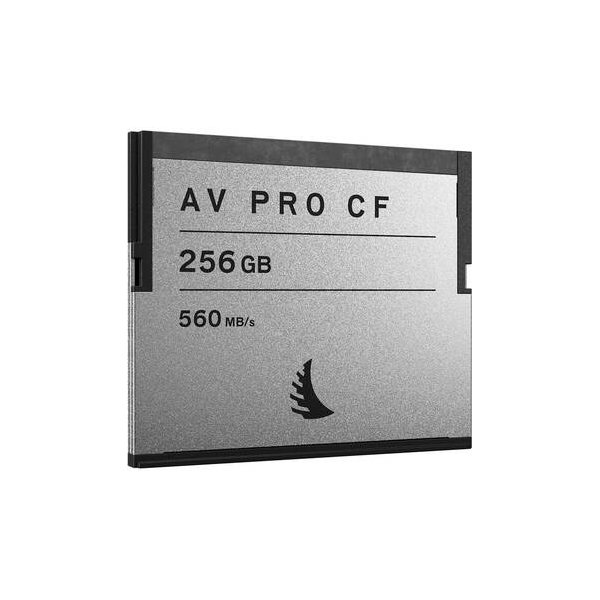
Angelbird 256GB AV Pro AR CFast 2.0 Memory Card
Angelbird
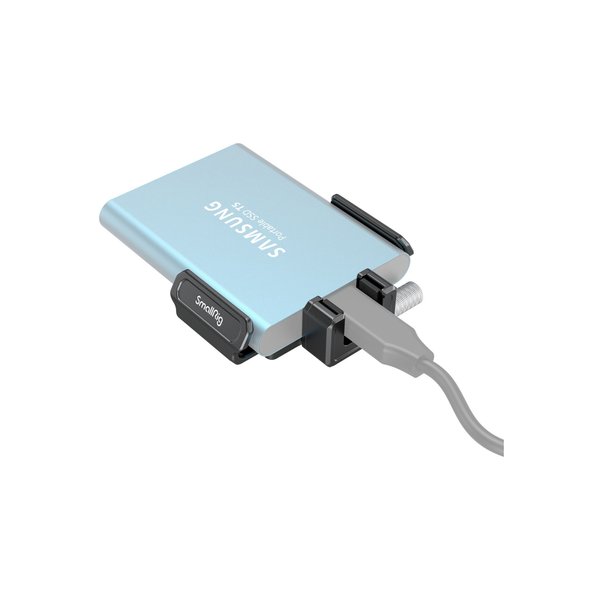
SmallRig T5/T7 SSD Mount for Blackmagic Pocket Cinema Camera 6K Pro
SmallRig
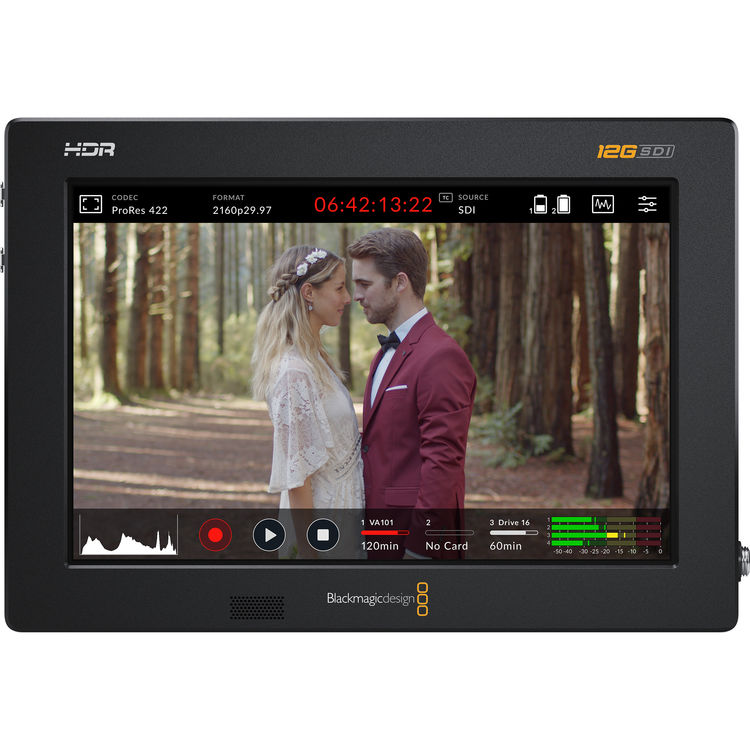
Blackmagic Design Video Assist 7" 12G-SDI/HDMI HDR Recording Monitor
Blackmagic
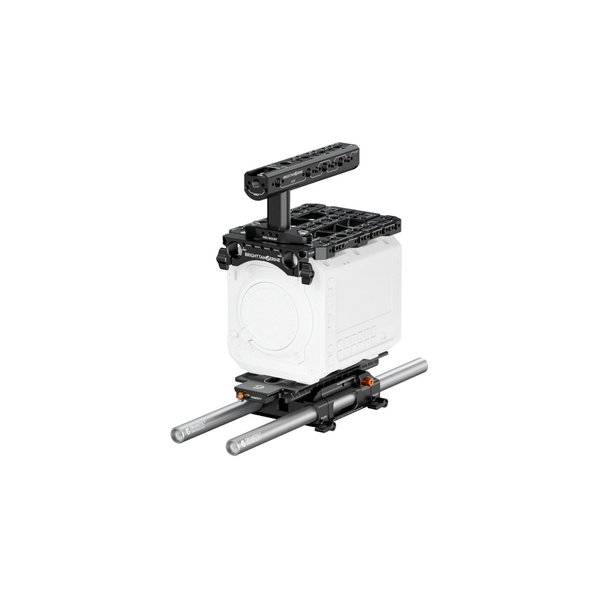
Bright Tangerine Advanced Cine Kit for Blackmagic PYXIS
Bright Tangerine
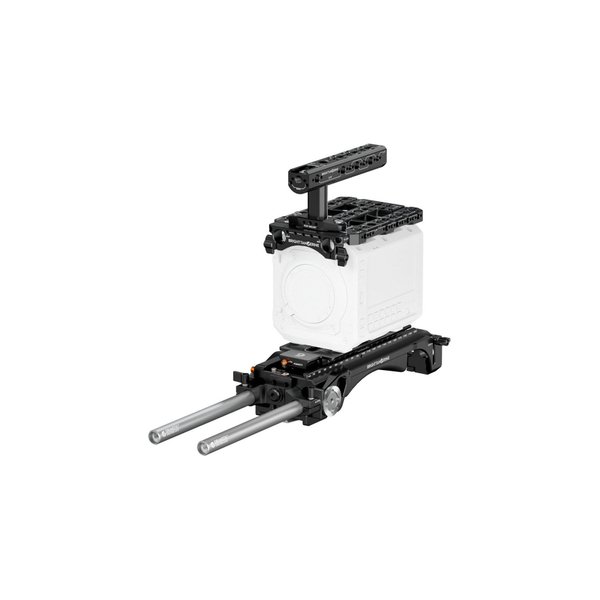
Bright Tangerine Advanced Documentary Kit for Blackmagic PYXIS
Bright Tangerine
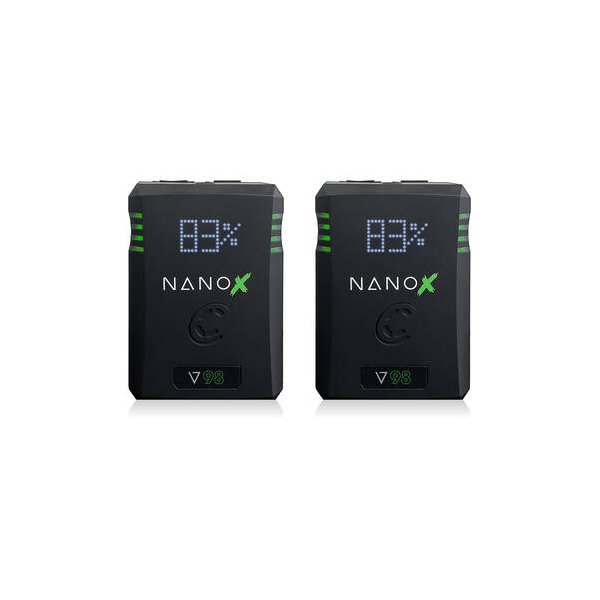
Core SWX NANO X V98 Micro 98Wh Li-Ion Battery (V-Mount)
Core SWX
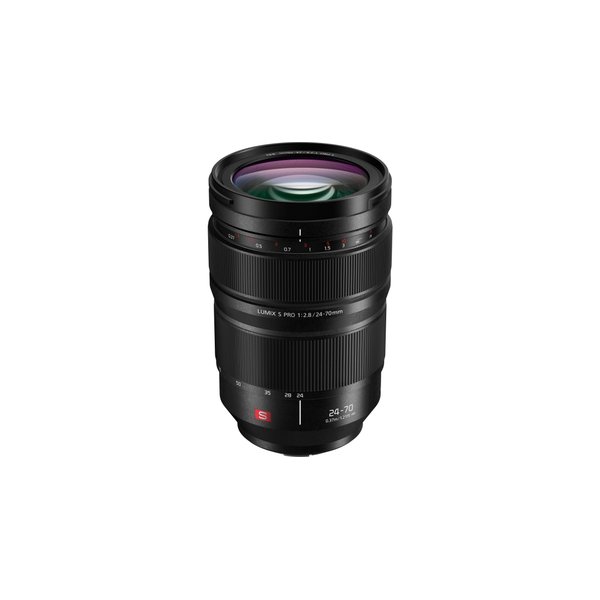
Panasonic LUMIX S PRO 24-70mm f/2.8 Lens
Panasonic
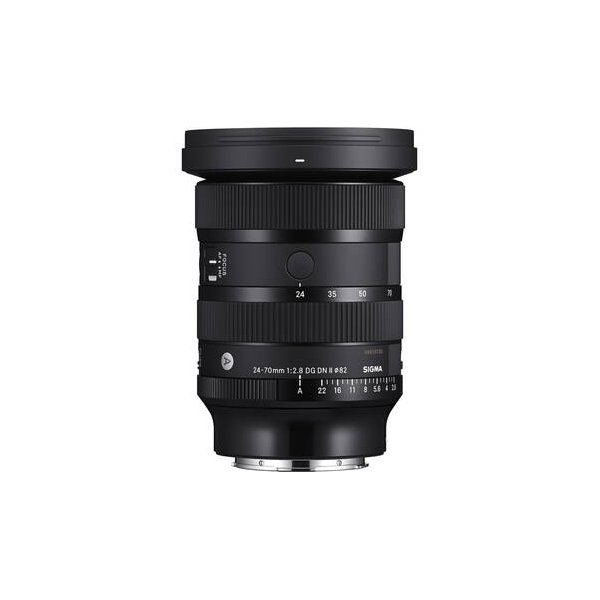
Sigma 24-70mm f/2.8 DG DN II Art Lens (Sony E)
Sigma
Related comparisons
The Pyxis 6K offers full-frame imaging and L-Mount versatility, while the BMPCC 6K provides Super 35 and EF mount at a lower price.
See full comparison Pyxis 6K vs Pocket Cinema Camera 6K G2The Pyxis 6K offers full-frame imagery and a modular design, while the BMPCC 6K G2 provides Super 35 and ProRes at a lower cost.
See full comparison Pyxis 6K vs Micro Studio Camera 4K G2The Pyxis 6K delivers full-frame cinematic quality; the Micro Studio Camera 4K G2 excels in compact live production.
See full comparison